
Do you want to be a part of future pilots? Sign up to our research group here.
Note: This article only applies if you want to send emails from Animana using your practice’s domain name.
To send emails from Animana using your practice’s domain name, you must complete the email settings. As part of the setup process, you must configure DNS records with your domain name provider. This article will explain how to configure your DNS records. As the menu of every domain name provider is different, we will explain this in general terms.
The DNS records only need to be configured once per domain name, so if your practice uses the same domain for multiple Animana accounts, you only need to follow this process once.
Before you start
- You will need login credentials for your domain name provider and access to their administration console. More about this.
- You need Animana administrator permissions to setup outgoing email. Permissions can be adjusted by practice administrators in Settings > General Settings > Role Management.
- You will need to have added your practice domain in the outgoing email settings. See the related articles.
Step-by-step instructions
Tip: you can find instructions from some of the most common domain name providers explaining how to add DNS records in the More about this section.
- If you’re not already on the page, go to Settings > General Settings > Outgoing Email.
- In the Domains list, click this icon
 for the domain you want to validate.
 - You will see a popup with DNS records information.
This is box titleThis is an example of the DNS records for the made up domain “yourpracticedomain.com”: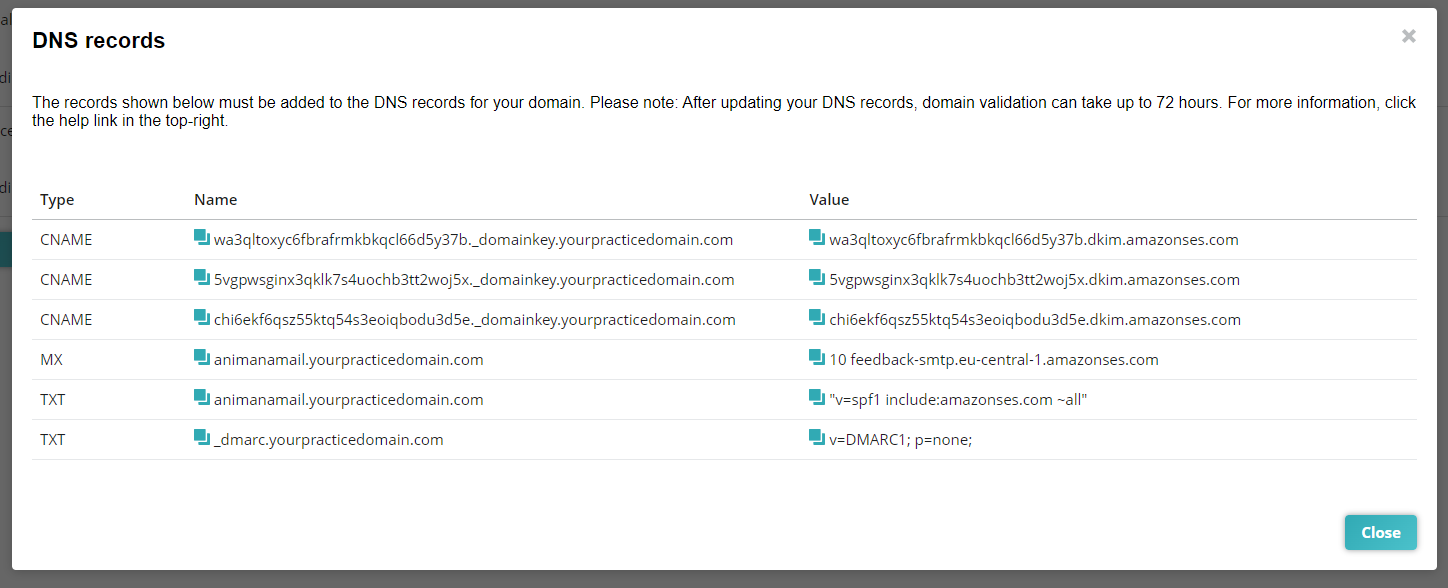 Almost all of these records are a straight copy-and-paste, with one exception. One of the TXT records is a DMARC record, and your domain can only have one of those. Before you add it, you need to check whether your domain already has one. See more about this below, which you will need at step 15.
- While leaving this internet browser window open, open a second internet browser window and login to your domain name provider administration console. If you have problems accessing it, please ask your practice’s IT team for help.
- In the domain name provider menu, identify and click the domain name you also clicked in Animana (step 2 above).
- Look for a “DNS” menu. Again, these are generic instructions, so your provider’s menu is unique.
This is box titleThis is an example of a domain management menu with the option to edit the DNS records for the made up domain “yourpracticedomain.com”: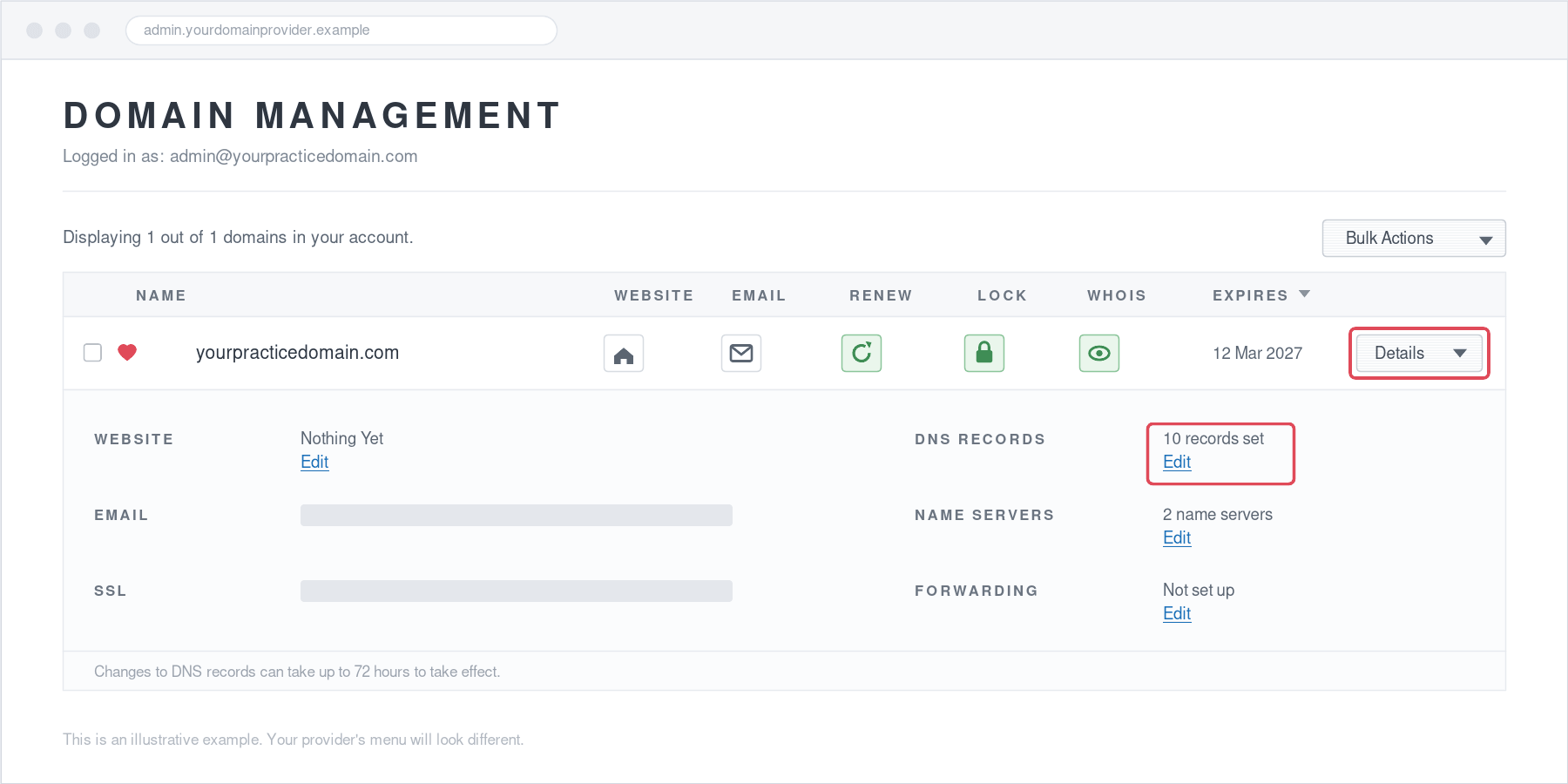
- Look for an option to edit the DNS records, such as “Manage name servers”, “Edit” or an “Add record” button.
- In the manage or add DNS records screen, when asked to select a type of DNS, select the type of DNS record shown in the Animana DNS popup screen in step 3 above (i.e. CNAME/MX/TXT). In our example, that would be “CNAME”.
This is box titleThis is an example of a screen to add a CNAME record for the made up domain “yourpracticedomain.com”: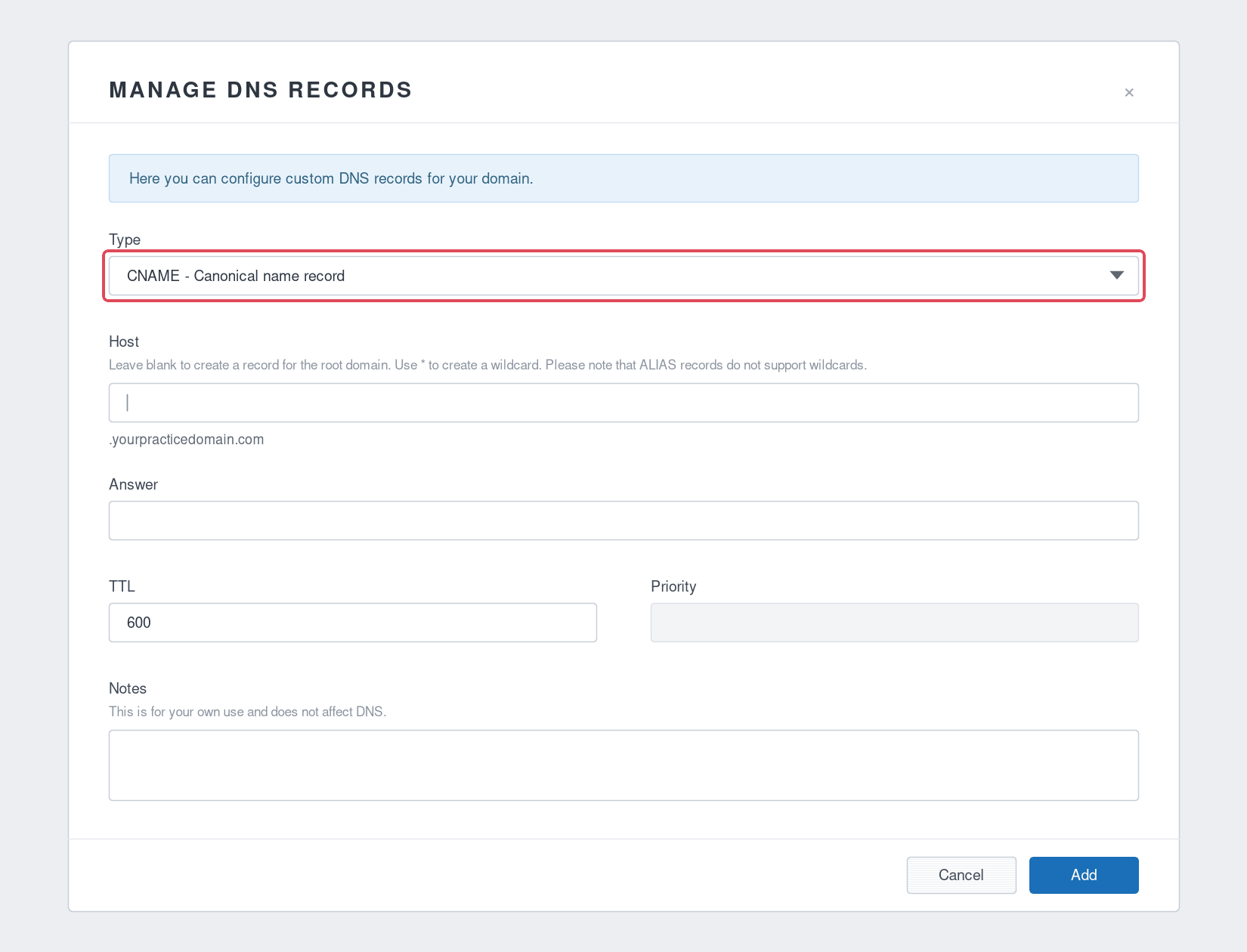
- Copy the DNS record name from the first row of the Animana DNS popup screen. You can click
 to copy it.
 - Paste it into the Name field in the provider console. Again, not every provider uses the same terminology, so in this example we would need to paste it in the field “Host”.
This is box titleNote that in this example, the name you copied from Animana ends with “.yourpracticedomain.com” but in the add DNS screen the field “Host” also has “.yourpracticedomain.com”. So you will need to delete this part of the name from the “Host” field. Otherwise, it ends with “.yourpracticedomain.com.yourpracticedomain.com” and it then wouldn’t be valid. - Copy the DNS record value from the first row of the Animana DNS popup screen. You can click to copy it.
- Paste it into the Value field in the provider console. Again, not every provider uses the same terminology, so in this example we would need to paste it in the field “Answer”.
- If the console requires a TTL, choose 1 hour (3600 seconds), or auto.
This is box titleThis is an example of a completed screen for a CNAME record for the made up domain “yourpracticedomain.com”: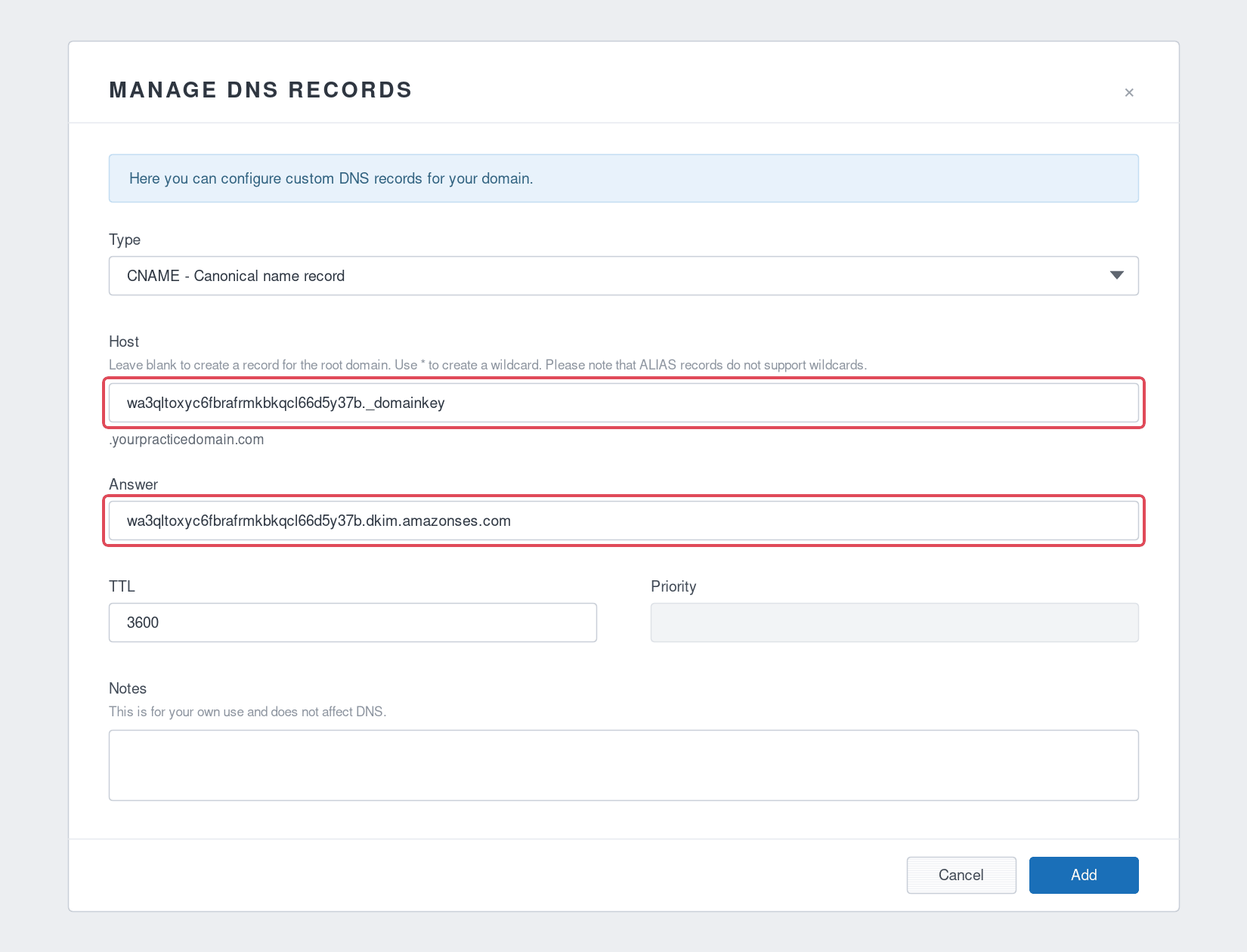
- Click “Add”, “Save” or “Update” depending on the options available in your console.
- Repeat steps 8-14 for all the rows in the Animana DNS records popup (step 3). Make sure to select the correct type for each DNS record. For the DMARC row, read this section first.
This is box titleFor the MX record, if you’re being asked to add a priority – use “10” and only use “feedback-smtp.eu-central-1.amazonses.com” as value.
Once you have added all the DNS records, you can leave the page. You will then need to wait until the DNS records have updated and the domain has been validated. This process may take up to 72 hours. Make sure to check the status 72 hours after following the steps above. How do I do that?
More about this
The DMARC record: check before you add
Every record in the Animana popup is a straight copy-and-paste, except one: the DMARC record. That is because a domain can have only one DMARC record. If a second one is added, email providers cannot tell which of the two to follow, so they ignore DMARC for your domain altogether, which means your emails lose a layer of protection instead of gaining it.
You can recognise a DMARC record as one of the TXT records. Its name begins with _dmarc. (in our example above: _dmarc.yourpracticedomain.com) and its value begins with v=DMARC1.
Is a DMARC record required?
Well strictly speaking it is not. Your domain will reach the status Validated and your emails will be sent whether or not you add this record. But there are two good reasons to add it:
- Your emails are more likely to reach the inbox. Since February 2024, Gmail and Yahoo apply stricter rules to senders of more than 5000 emails per day. Without DMARC, those senders are rejected or filtered as spam far more aggressively.
- You can see whether anyone is impersonating your practice. This one applies to every practice, whatever your mailing volume. DMARC is what generates the reports that tell you if someone is sending fake email pretending to come from your domain. Without the record, you would lose the visibility on this reporting.
What should I do?
- In your domain name provider’s DNS overview, look through your existing TXT records for one whose name is “_dmarc” or “_dmarc.yourpracticedomain.com”. If you’re not sure how to read the list, ask your IT team or your provider’s support.
- If you do not have a DMARC record: add the DMARC record from Animana exactly like all the other records, following steps 8-14 above.
- If you already have a DMARC record: do not add a second. Keep your existing record and skip this row. Let your IT team (or whoever manages your domain) know that you are now also sending email through Animana, so they can check that your existing DMARC policy still suits you and that its reports will reach you.
Not sure whether you have a DMARC record?
Skip the row for now and finish the other records. Your domain will still validate. Then contact your IT team to sort out DMARC separately. It is better to leave the row out than to end up with two.
How do I know who my domain name provider is?
Sites such as Hosting Checker allow you to enter your domain name, and it will provide information about your provider. This system is not perfect, but it might be enough to give you some clues as to who your provider is. Otherwise, please ask your IT team to assist you.
The terminology explained
When explaining how to set up outgoing e-mail, a lot of terminology is used. Below is a list of terms and their explanation.
| Term | What it means |
|---|---|
| Domain | Your address on the internet, such as example.com. If you imagine the internet is a big city with millions of houses (websites). Each house has its own address (domain name). |
| Subdomain | A separate section of your domain, written in front of it. For example mail.example.com. Think of it as a separate entrance to the same building, with its own nameplate. |
| Domain name provider | The company you rent your domain name from, and where you manage its settings. Like the estate agent that sold you the address (domain name). They don't build the house (website), but they control who the address belongs to. |
| Website provider | The company that hosts and runs your website. The builder rather than the estate agent. Often, but not always, the same company as your domain name provider. |
| DNS records | DNS records, or Domain Name System records, are settings at your domain name provider that tell the internet where to send traffic and email for your domain. Like the signposts at the entrance to your street. |
| CNAME record | A CNAME record, or Canonical Name record, is a DNS record that points one name at another name. A signpost saying "this way to…". |
| MX record | MX records, or Mail Exchange records, are DNS records that say which mail server receives email for your domain. A note on the signpost saying where to deliver the post. |
| SPF record | An SPF (Sender Policy Framework) record is a DNS record listing which mail servers are allowed to send email using your domain. It is what stops someone else from sending email that looks like it came from you, and what tells the receiving side that Animana is allowed to send on your behalf. |
| DMARC record | DMARC (Domain-based Message Authentication, Reporting & Conformance) is a DNS record that tells email providers what to do with messages that only pretend to come from your domain: reject them, hold them as spam, or let them through and report back. It's like a note telling the mail carrier how to handle letters that aren't really from your house. You can only ever post one such note. Otherwise, the mail carrier gets confused and just ignores both notes and lets all the letters through. |
| Bounce | An email that could not be delivered and came back. Usually a wrong or full mailbox, or a receiving server that refused it. |
| Spam complaint | A recipient marked your email as spam in their mail program. Their provider reports this back, and too many complaints make it harder for all your emails to reach clients' inboxes. |
Links to common domain name providers DNS instructions
To help you, we have made a list of some of the most common domain name providers and their instructions to guide you through the process of managing DNS records for your domain. This list is not complete.
- Amazon Route 53: Click here
- Amazon Managed Microsoft Active Directory: Click here
- Combell: Click here
- Cloudflare: Click here
- GoDaddy: Click here
- Host Europe: Click here
- Ionos: Click here
- Namecheap: Click here
- One.com: Click here
- SiteGround: Click here
- Strato: Click here
- Squarespace: Click here
- United Domains AG: Click here
- Wix: Click here