
A product reminder group determines which product reminders overrule other product reminders. As it is possible in Animana to schedule product reminders to be sent automatically to clients based on product reminder rules, the product reminder group settings determine which reminders can be deleted when a new product of the same product reminder group is added. This article will explain how to set up product reminder groups.
Note: Product reminder groups are not mandatory for manual reminders. But they are still advisable because otherwise, you will need to manually remove out of date reminders.
Before you start
You need permission to be able to manage product reminder groups. Permissions can be adjusted by your practice administrator in Settings > General Settings > Role Management.
Step-by-step instructions
- Go to Settings > General Settings > Product reminder groups.
- Click New at the top to create a new product reminder group.
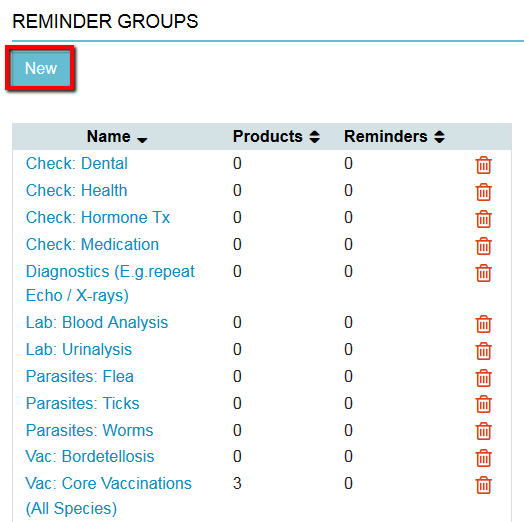
- Give the product reminder group a name.
- Click Save.
You have now created a product reminder group. The next step will be to allocate products to this product reminder group. This will be explained in a separate article that you will find in the Related Articles section below.
More about this
Example of a deworming product reminder group
A common use for a product reminder group would be to group similar products from different manufacturers. For example, you can create a product reminder group for all deworming products that you sell in your practice (such as Milbemax, Drontal, Panacur, etc). You can then link the individual deworming products to this product reminder group. This way, when a client buys a Milbemax tablet a Milbemax reminder will be added to the patient’s file. Next time, the client might want to buy a Drontal tablet for the same patient and when that product is added to the patient file, a Drontal reminder will be added to the file. However, because in this example Milbemax and Drontal are both in the same product reminder group, Animana will recognise that while adding a new reminder for Drontal, the old reminder for the Milbemax can be deleted as the Drontal overrules the Milbemax reminder.
Warning for vaccination product reminder groups
In the case of vaccinations: be careful – only group vaccinations together that do the same job and have the same remind period. Let’s say you grouped an annual vaccination and a rabies vaccination (which has a remind period of three years) together by accident. In that example, when you add a rabies vaccination to the patient file it would not only create a reminder for over three years but also delete the annual vaccination reminder. This is not desirable because you would not see your client for three years and your patient would not be protected! Therefore, make sure to create a separate product reminder group for rabies vaccinations and all other vaccinations that do a different job and remind period (such as kennel cough vaccinations).
Are product reminder groups only for vaccinations and deworming?
The short answer is: no. You are also able to create product reminder groups for monitoring kidney, diabetes and thyroid problems.
How can I see which products are linked to a product reminder group?
To see which products are already linked to a product reminder group proceed as follows:
- Go to Settings > General Settings > Product reminder groups.
- Click on the name of the product reminder group.
- Scroll to the bottom to see a list of the products linked to this product reminder group.
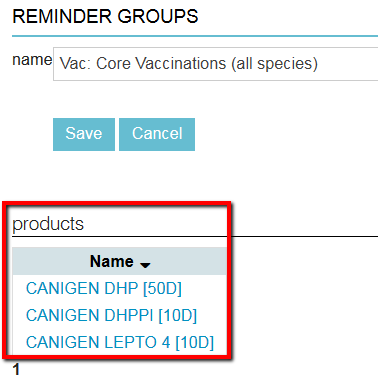
Note: To edit the product reminder settings of these products, simply click on a product to go to the product settings. Then click on the tab reminder to edit the settings for the product reminder.