The header bar has four different areas.

- The dark grey area holds the IDEXX Animana logo. Clicking the click on the logo will take you to the start page. Furthermore this area has the search field and the icons to the other menus: New Contact, Counter Sale, Appointments, Worklist and Extra.
- The blue area directly underneath is the “breadcrumb bar”. In the future this will be used to help you identify the page and area you are working in.
- In the top right hand corner you will see the name of the user that is logged in with the user colour background. Below the name you will see the location that that user is logged in to. The user colour can be changed in the User settings; the text colour will be adjusted to the background colour in order to keep it readable in every case. Switching user or location can be done by clicking on the name.
- Below the user name/location you’ll find the utility area. Here you will see icons for web agent connectivity, messages, new lab results, help, settings, and log out.
General settings and User settings
These two menu items have now been moved to the utility area.
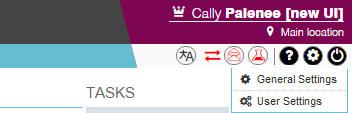
When you click the settings (cog) icon, you will be able to choose between General Settings and User Settings. These will bring you to the area where you used to go via Extra > General Settings or Extra > User Settings. The functionality remains the same.
User and location switch
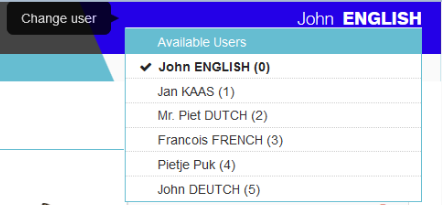
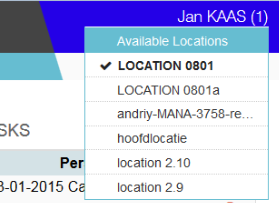
To switch to another user or location you click on the name and you will see a list of available users or locations. Just click the one you need and it will switch instantly.