
Animana stores your DICOM images, patient pictures, letter headers, and attachments, all of which take up storage space. The first 10 GB is free of charge, and any storage above 10 GB is charged. To keep your costs down, you may want to check your storage regularly. This article shows you how to identify which items take up the most storage in Animana and how to free up that storage space.
Before you start
You need administrator permissions to be able to manage your storage space. User permissions can be adjusted in Settings > General Settings > Role Management.
Step-by-step instructions
- Go to Settings > General Settings > Manage Storage.
- At the top of the screen, you will find your current storage usage specified. Note that 1000MB = 1GB.
- In the “clean up DICOM files” section, enter the start and end date for the period that you want to delete DICOMs from.
- By default “remove original files” will be selected.
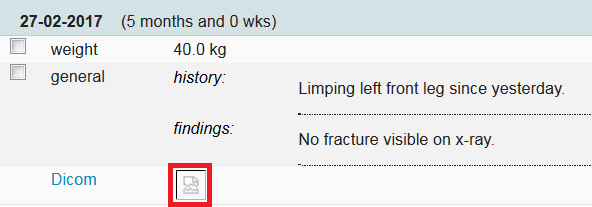
This is box titleGood to know: this will remove the original DICOM image from the Animana server but will save a .jpg image of the same x-ray so that you will always have the option to view the x-ray from the patient file. - You can also choose to delete the thumbnails (the small .jpg previews) from the server and the patient file as well, in which case you will need to select “remove thumbnails”. After that, the patient file will show when an x-ray was made but you can no longer see the preview of the x-ray.
This is box titleThis is an example of a patient file with a deleted DICOM thumbnail.
- Click Remove.
- You will see a progress report. Once the job is completely performed the status will change to “finished”.
- Return to Settings > General Settings > Manage Storage to see the new storage usage.
More about this
How do I delete DICOMs that are not linked to a patient record?
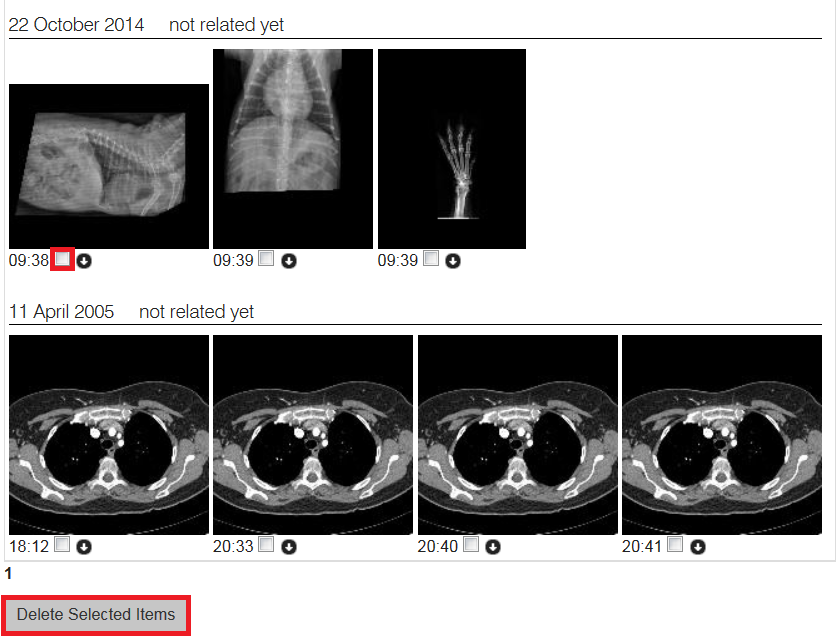
- Go to Worklist > Digital Xray.
- You will find a list of DICOMs which are not linked to a patient record.
- Select the DICOMs you want to delete by checking the box beneath.
- Scroll down and click Delete Selected Items.
How do I delete specific DICOM files rather than all files in a period?
When you go to Settings > General Settings > Manage Storage you see the total storage usage for DICOM files.
- For more detail, go to Extra > Export.
- Click Export Dicom.
- At the bottom of the table, click
 to export this file to Excel.
 - Open the file in Excel.
- Next, in Animana, go back to Extra > Export and click Export Patient.
- At the bottom of the table, click csv to export this file as a comma separated file.
- Convert your csv to Excel. How do I do that?
- Once converted, copy the patientID (column B) in the “Export dicom” file for the dicom you wish to delete and search for that patientID in the “Export patient” file.
This is box titleTip: If you want to do this in bulk, you can use Excel’s VLOOKUP or XLOOKUP functionality to match the dicom file’s field “patient id” to the exported Excel patient file’s field “code”. Microsoft Excel help. - For that patientID in the “Export patient” file, use the corresponding patient number (column D, “code”) to find the patient in Animana. Make sure to select Patient from the drop-down menu behind the search bar. See the related articles.
- Open the Patient file.
- Filter on “Diagnostics”. How do I do that?
- Open the diagnostics entry with the dicom you want to delete.
- Click Delete.
How do I find which patients have patient pictures attached? And how do I delete them?
When you go to Settings > General Settings > Manage Storage you see the total storage usage for patient pictures.
- For more detail, go to Extra > Export.
- Click Export Patient.
- At the bottom of the table, click csv to export this file as a comma separated file.
- Convert your csv to Excel. How do I do that?
- Once converted, you will see that column AB lists the file size of the patient picture.
- Click in cell AB2 and then sort by size (
 ). This will show the largest patient pictures at the top.
 - Using the patient number (column D, “code”) you can find the patient in Animana. Make sure to select Patient from the drop-down menu behind the search bar. See the related articles.
- Open the Patient Data tab.
- Click Add picture of patient at the bottom.
- Click Delete image.
How do I find which patients have an attachment? And how do I delete them?
When you go to Settings > General Settings > Manage Storage you see the total storage usage for attachments.
- For more detail, go to Extra > Export.
- Click Export image.
- At the bottom of the table, click to export this file to Excel.
- Open the file in Excel.
- You will see that column I lists the file size of attachments.
- Click in cell I2 and then sort by size (). This will show the largest files at the top.
- Next, in Animana, go back to Extra > Export and click Export Patient.
- Copy the patientID (column B) in the “Export image” file for the attachment you wish to delete and search for that patientID in the “Export patient” file.
This is box titleTip: If you want to do this in bulk, you can use Excel’s VLOOKUP or XLOOKUP functionality to match the attachment file’s field “patient id” to the exported Excel patient file’s field “code”. Microsoft Excel help. - For that patientID in the “Export patient” file, use the corresponding patient number (column D, “code”) to find the patient in Animana. Make sure to select Patient from the drop-down menu behind the search bar. See the related articles.
- Open the Patient file.
- Filter on “Attachments”. How do I do that?
- Open the attachment you want to delete.
- Click Delete.