
By default, an appointment is set as a unique one-off event. This article will explain how to create a recurring appointment.
Before you start
This is box title
- Make sure that your appointment columns, appointment types and appointment groups have been customised in your account before continuing. See the Learning Path: Diary Management for more information related to this topic.
- You can only proceed if you understand how to create an appointment. Learn more about creating appointments here.
Step-by-step instructions
- First you need to create an appointment. See the related articles for help.
- In the appointment modal, click on the drop-down by the date field. By default, it says “no repeat” (occurs once only).
- Select a repeat pattern from the drop-down menu. Once you select one, the system shows the advanced repeat options. I don’t see the repeat pattern I want to set up.
- Set the date when you want the recurring appointment to end.
- Select the days of the week the appointment repeats by ticking the relevant boxes.
This is box titleFor example, if a patient is due vaccinations on both Mondays and Thursday for a total of 6 weeks, the end date should be 6 weeks later and the boxes “mo” and “th” should be selected.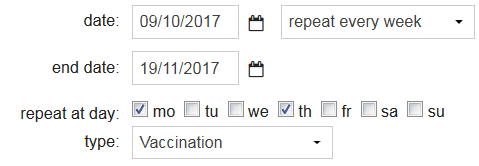
- Click Save.
More about this
I don’t see the repeat pattern I want to set up?
When creating appointments you can customise how you want the appointment to repeat. If the repeat pattern you want to create is not displayed in the drop-down menu mentioned in step 3 above, then select the option “custom” from that drop-down menu.
You can now create your own repeat pattern by adding a frequency, interval and end date, as well as which days of the week you want to repeat the appointment. Confirm by clicking Save.
How do I change one appointment of a recurring series?
In order to change an appointment that is part of a recurring series, proceed with the following steps:
- Open the diary.
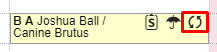
- A recurring appointment can be identified through the circular symbol in the diary:
- Simply drag and drop the appointment to the desired time:
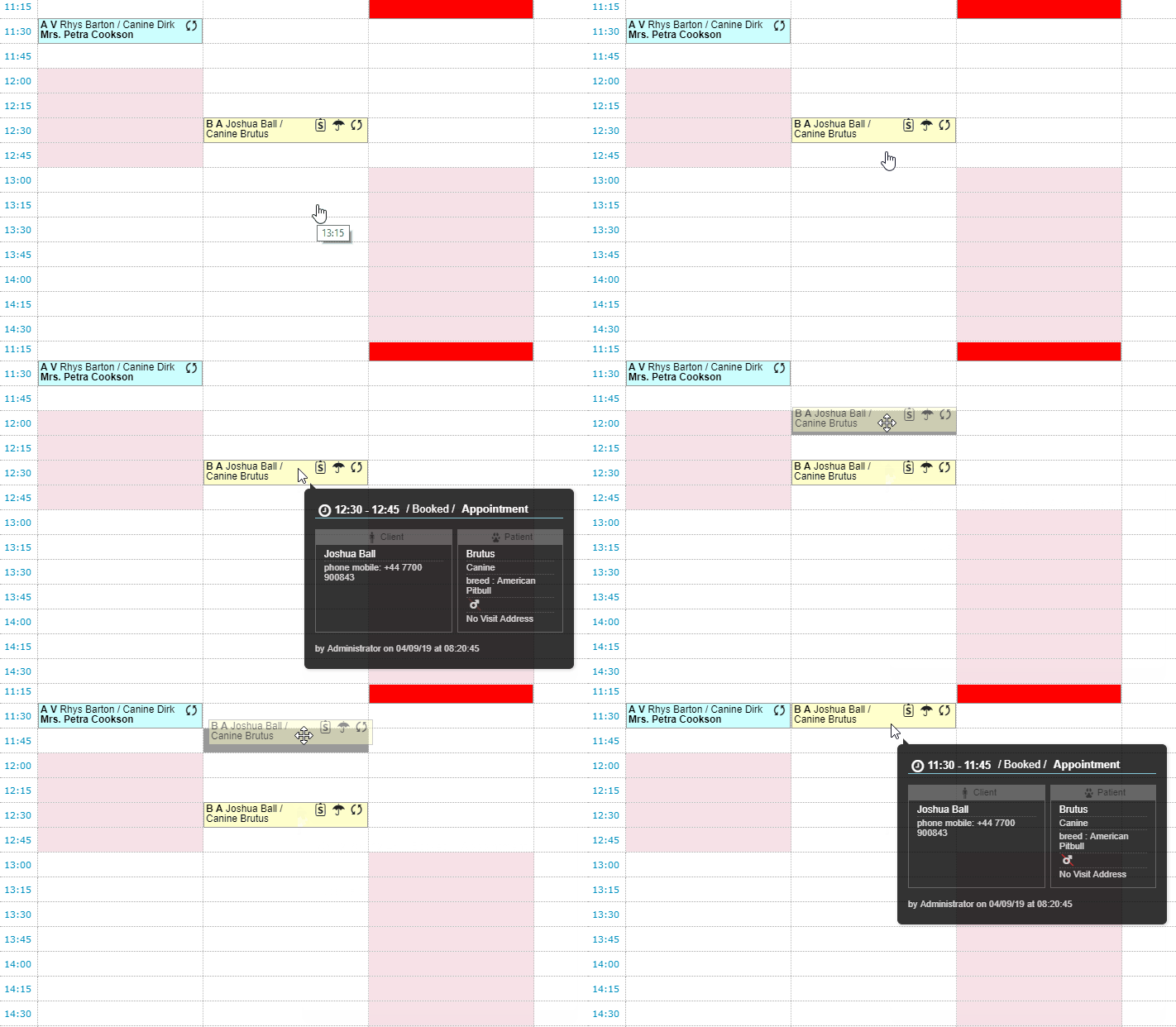 This change will only reflect on this appointment and not on the others in this series of appointments.
How do I change the details of all the appointments in a recurring series?
- Open one of the appointments from the series.
- Make the desired changes to the appointments.
- At the bottom of the pop-up you can decide whether to apply these changes to this selected appointment only or to all future appointments in this series. Make sure to select to this and all future appointments in series.
- Click Save.