In focus: Stock management

Good stock management keeps your practice running smoothly. It means you always have the right medicines and supplies on hand, so patients never have to wait for care. It helps reduce waste and costs, while making daily work more efficient for your team. Plus, it ensures everything is safe, compliant, and easy to find. On this page you will find all the relevant information to help you manage your stock in Animana.

This is box title
We are working on an even easier way to manage your stock. Please find more information on the new workflow below.

Help articles

Adding and editing your products

Setting up your stock

Editing your stock

Other


Frequently asked questions

What's changing in the new stock management, and does it affect me?

You will see significant improvements in how Animana supports your stock management. With more automation, tasks like recording batch numbers and tracking expiration dates will become far less manual and error-prone, saving time and reducing the risk of mistakes.

Ordering processes will also feel smoother, as smarter minimum order calculations will better reflect the actual needs of your practice. Your stock will be more accurate and easier to interpret, which means you can rely on real-time information rather than frequent manual checks. These changes will simplify your workflows, and free up time to spend on patient care instead of administrative corrections.

What is different from my current stock management workflow?
  1. Stock quantity updates
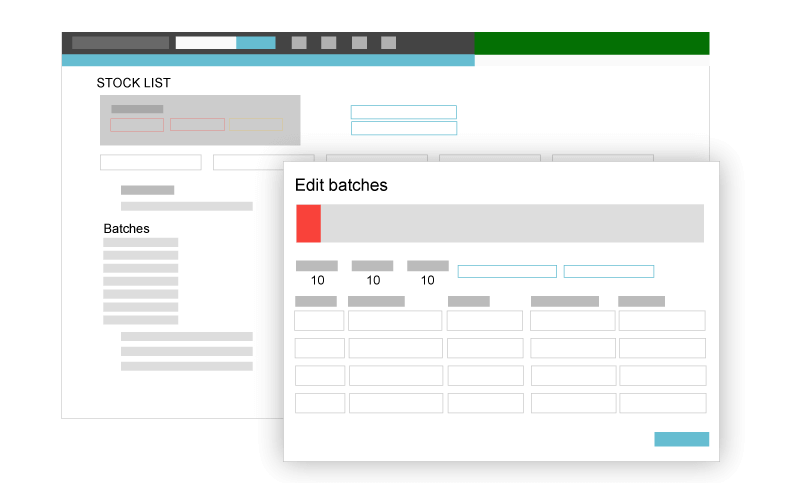
    • You can no longer edit “total stock” directly. All updates must go through batches. This prevents discrepancies between total stock and batch quantities.
    • The pages Edit Stock and Stock Count are retired, and replaced by the Stock List page. This is now the only place to update stock levels.
    • The product tabs Stock and Batch are now read-only.
    • When creating batches you are required to enter a quantity.
  2. Order suggestions
    • Fixed order amounts are replaced with maximum target levels and smart suggestions.
    • The system calculates how much to order based on your current stock and your set target levels.
  3. Batch tracking
    • When booking products without batch or expiry information, Animana automatically creates batch names (e.g. “Batch unknown 2025-0001”).
    • You can disable batch tracking for individual products.
What is a discrepancy and how do I fix it?

Based on the orders you place via Animana, and the products you invoice, Animana will calculate your total stock quantity of a product. When you track product batches in your stock, you will also track the available batch quantities for a specific product in Animana. Ideally, the batch quantities of a product and its total stock are the same. But when there is a mismatch between the total stock of a product and the batch quantities for that product, we call it a stock discrepancy.

Please refer to this article: How do I correct a discrepancy in my stock?

How will the new stock management workflow help me to maintain a healthy stock level?
Instead of using fixed order amounts, the new stock management workflow allows you to set a maximum stock level target and get smart suggestions to reach it.

This is how it works:

  1. Maximum target levels
    • Animana pre-fills the maximum stock target level using your previous minimum + order amount
    • You can set the ideal maximum stock level for each product
    • You can update anytime by clicking in the field “Max”
  2. Smart order suggestions
    • The calculation works as follows: Max target – Current stock (+/-) pending orders = suggested amount
    • Order suggestions account for pending orders (to be booked in) and client orders (going out)
    • Shows suggestions even when stock is above minimum (so you can see what’s needed to reach your ideal stock level)
  3. When the current stock ≤ minimum level you will see that product appear in Extra > Stock > Create Order under the section “Suggested products based on stock level”.
How do 'Max' and 'Order' work together?
On the page Extra > Stock > Stock List the suggested order quantity appears in the column “Order” whenever your “In stock” quantity is below the quantity that was entered in the column “Max” for that product.

That means that based on the quantity you currently have in stock, Animana tells you how much you need to order to reach your desired “Max” stock level.

When does a product appear on the suggested order list?

A product will appear on the order list (Extra > Stock > Create Order), under the section “Suggested products based on stock level”, when all of the following conditions are met:

  • both “Min” and “Max” quantities have been entered for a product (in Extra > Stock > Stock List)
    AND
  • the current stock (“in stock”) is at or below the minimum level (“Min”).
What happens if you only enter 'Min' or only enter 'Max'?

When only “Min” has been entered for a product, there will not be an order suggestion on the Stock List (Extra > Stock > Stock List), and the product will not appear on the Create Order page (Extra > Stock > Create Order).

When only “Max” has been entered for a product, the order suggestion does show on the Stock List page (Extra > Stock > Stock List > column “Order”), but the product will not appear in the suggested products list on the Create Order page (Extra > Stock > Create Order).

In order to receive automatic order suggestions, you need to enter both “Min” and “Max”.

How do I set up products that I only order when needed?

For products that you don’t typically stock and only order when necessary, we use the status “On demand”. You can set up the stock settings for these products as follows:

  1. Go to Extra > Stock > Stock List.
  2. Check that the location pre-selected in the location drop-down menu is the one you want to edit stock information for.
  3. Find your product by entering the product name in the “Filter by product” field.
  4. Click Enter.
  5. Enter “0” (zero) as the desired minimum and maximum level of this product.

When your stock level for this product becomes zero, the status will show “On demand” instead of “Out of stock.”

Then, when you create a client order for this product, Animana will automatically suggest to order this product and place it on the suggested products list on the Create Order page (Extra > Stock > Create Order).


Other resources

Blogs

Stocktaking – more important than you think?

Read more


Need more help?

We’re sorry you couldn’t find the answer you’re looking for. We recommend you contact our Customer Support team.


Updated on 20 November 2025
Was this article helpful?