
To use IDEXX Animana, all you need is an internet connection and a web browser. We recommend using Google Chrome as your web browser for the best user experience. This article explains how to install Google Chrome and provides tips on its settings.
Before you start
This article will explain how to set up your browser, it will not provide detailed instructions on how to set up silent printing. If you need more information about that topic, please see Related Articles.
Step-by-step instructions
- Download Google Chrome for free by clicking here.
- Click the Download Chrome button.
- Open the “chromesetup.exe” file at the bottom left corner of the screen. If you are asked, click Accept and Install in the system dialog boxes to agree to the terms and conditions by clicking Accept and Install.
- An installation file will be downloaded, open this file to start the installation.
- Once the download is finished the installation will begin and will notify you once it is complete. Click Close.
More about this
How do I set Google Chrome as the default browser?
Make sure that Google Chrome is your default browser. Each operating system works a bit different when it comes to setting a default browser. Please select which one applies to you.
Where can I find the Google Chrome settings?
- Open Google Chrome.
- Click
 at the top-right corner.
 - Click Settings.
Proceed with all the changes below.
How do I make Animana my homepage in Chrome?
- Open the Chrome settings as described above.
- Click On startup in the menu on the left.
- Select the radio button which says “Open a specific page or set of pages”.
- Click Add a new page.
- Type in (or copy and paste):
https://login.animana.com
in the URL field.
- Click Add.
Next time Google Chrome is opened, Animana will automatically open.
How do I ensure pop-ups from Animana are allowed?
- Open the Chrome settings as described above.
- Type “pop” in the search bar at the top.
- Click Site settings:
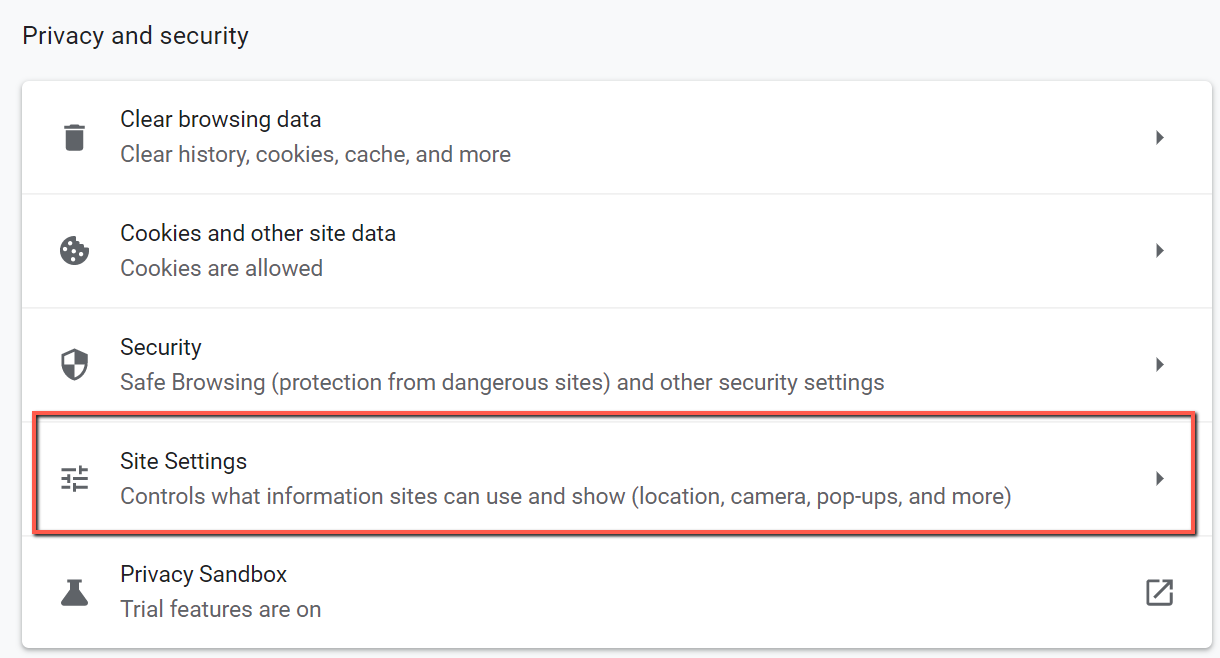
- Click Pop-ups and redirects.
- Click Add in the “Allow” section of the page.
- Type (or copy and paste):
[*.]animana.com
- Click Add.
1. “https://ordering.vetconnectplus.com” to ensure you have no issues in opening and printing VetConnect Plus order forms from the patient file in Animana.
2. “https://idexx.islonline.net/users/main/join.html” to ensure the link “Join a support session” at the bottom of each Knowledge Base page will work for you.
How do I disable the password management functionality?
At IDEXX Animana we take security very seriously, that’s why we advise taking precautions against unwanted access. This next set of instructions will explain how to disable the password management functionality in Chrome, this means that the browser will not automatically fill in your password details when you arrive at Animana.
- Open the Chrome settings as described above.
- Type “password” in the search at the top.
- Click Manage passwords.
- Click the slide to disable the password functionality (grey is disabled, blue is activated).
How do I enable the blue help question mark in Animana?
Animana uses technology to provide assistance and guidance whilst using the software. That guidance can be used by clicking on the blue question mark at the bottom right corner. To make sure that the blue question mark always shows, follow the steps below.
- Open the Chrome settings as described above.
- Type in “Cookies” in the search bar at the top.
- Click Cookies and site data.
- Scroll to chapter “Customized behaviors” and click the Add button behind “Sites that can always use cookies”.
- Type [*.]walkme.com in the “Site” field.
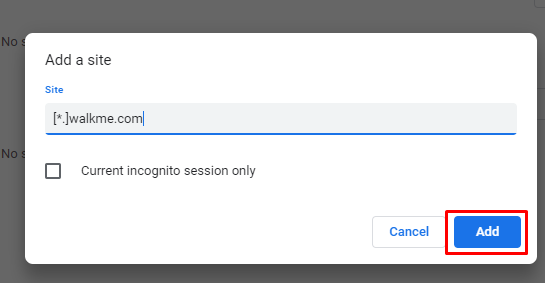
- Click Add.
Now restart your Google Chrome browser. The blue question mark should appear in the bottom right of Animana.