
When you sell a product or a service to your clients you will need to create an invoice for them so you can collect a payment. This article explains how to create an invoice in Animana.
Step-by-step instructions
- Open a Patient File.
- At the top, click the Product button. Depending on your settings, you will find this option either in the row of blue action buttons or in the “More actions” drop-down menu at the top left of the file.
- Search for the product and/or service that you want to charge in the search box on the left (in front of the “choose product group” drop-down menu.
- Select the desired product in the list by clicking on it once.
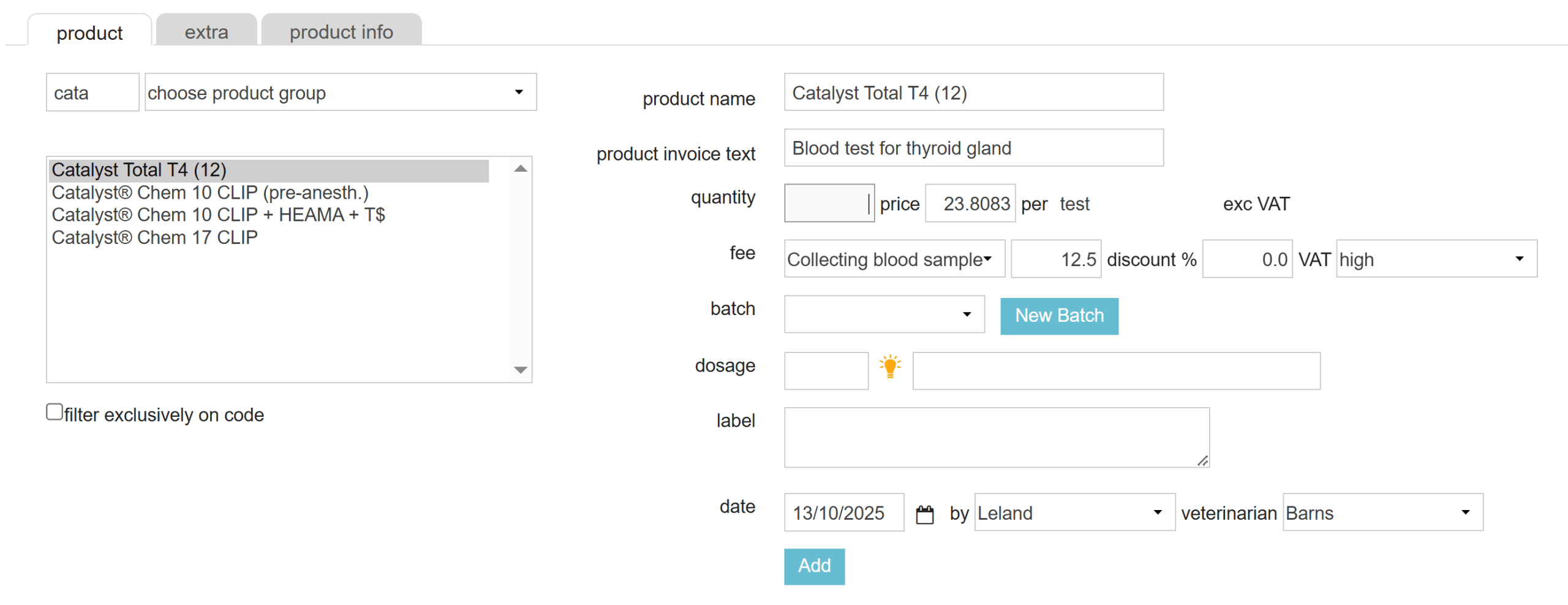
- Complete the desired fields on the right. More about this.
- Click the Add button at the bottom. Is the Add button inactive? More about this.
- Repeat step 3-6 until you have added all the items that you want.
- Scroll down and click the Preview Invoice button.
- You will be taken to the Uninvoiced tab. Double check that all items are listed correctly.
- Click Create invoice.
You have now created an invoice. You can continue taking payment for the invoice. For more information see the Related articles section.
More about this
Which fields are available?
| Field | Description |
|---|---|
| Product name | The name of the product as entered in the product database. This name is printed on the product label. If you have the correct permissions, you can edit the text if necessary before adding it to the invoice. |
| Product invoice text | The invoice text as entered in the product database. If this field is filled in, this name will be printed on the invoice. If this field is empty, the product name in the ‘product name’ field above will be printed on the invoice. If you have the correct permissions, you can edit the text if necessary before adding it to the invoice. |
| Quantity | The number of sales units of this product. By default, the quantity will be one. |
| Price | The price per sales unit, as entered in the product database. |
| Fee | This is used for fixed costs of actions (such as injections) or prescription costs. By default, the fee is selected as entered in the product database. |
| Discount | With the appropriate permissions, you can enter a discount percentage for this product here. By default, the discount is entered as it is registered in the product database. |
| VAT | The VAT rate for this product, as entered in the product database. |
| Batch | The drop-down menu shows the available batch numbers for this product, as they appear in the product database. By default, the batch with the earliest expiry date is selected. Click New Batch when your batch does not show in the drop-down menu. Add quantity (the total stock quantity of the batch), batch number and expiration date and click Save. Your new batch will now be selected in the "batch" drop-down menu. |
| Dosage | In the first field, you can enter an abbreviation for the dosage (double-click the light bulb icon for the list of abbreviations). If you do this, the written dose appears in the second field. You can also write out the dose in the second field without an abbreviation. The dosage in the second field is printed on the label. |
| Label | Enter additional label text here if required. This will be printed on the label. |
| Date | The date on which this product will be added to the invoice. By default, today's date is entered. |
| By | The surname of the user adding the product to the invoice. By default, the name of the current user is entered here. |
| Veterinarian | The veterinarian prescribing this product. |
Can I add a note to an invoice?
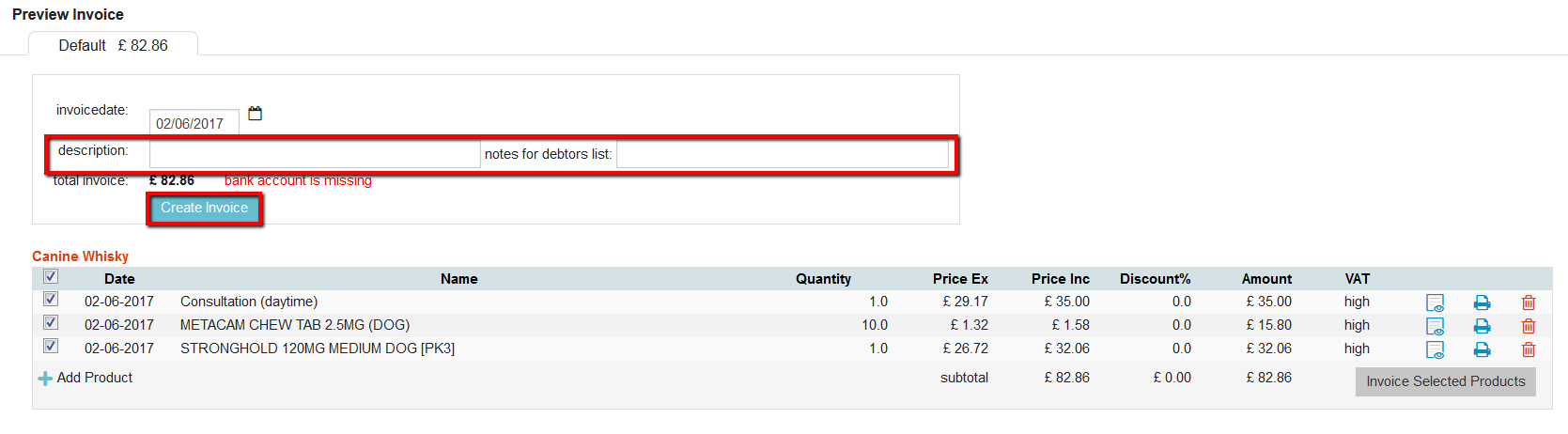
Yes. In the Uninvoiced tab you can add a description and a note for the debtors list at the top.
- Information added to the field “description” will appear on the invoice for the client to see.
- Information added to the field “Notes for debtors list” is for internal use only and will show in the Client file and in the Notes column on the Debtors page. The client will not see this note.
Is it possible to add a product before finalising an invoice?
Sometimes, just before creating an invoice you realise that you forgot to add a product. In that case, you can add products from the Uninvoiced tab, as long as you did not click the button Create Invoice.
- Scroll to the bottom of the screen, and in the “Add Product” box you can add products to this invoice before you create it.
- Select whether you want to add products to the owner or to one of the patients (we advise to add products to patients) by using the drop-down menu.
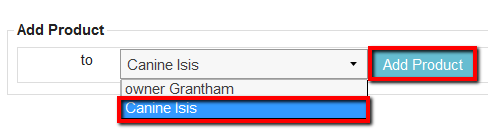
- Click Add Product.
You will be taken to the Patient File of this patient where you can continue to add extra products.
How can I delete products before creating an invoice?
Before creating the invoice, there’s an overview of all the uninvoices products in the Uninvoiced tab. If you see products or services listed there which you do not want to include in the invoice, you can choose to either exclude or delete these:
- From the Uninvoiced tab, identify the rows you wish to exclude or delete.
- To exclude the item from this invoice (but leave it there to include it in an invoice at a later stage), simply uncheck the box in front of the item you want to exclude from this invoice.
- To deletethe item from any future invoices, clicking the redrecycle bin-icon on the corresponding item row.
- Click Create Invoice when you have made your final adjustments and want to create the invoice.
Help, I cannot add the product!
If the Add button is inactive, the option “Block adding products to invoice when stock is insufficient” has probably been enabled in the general settings of your account.
When this option is active and you have entered a higher number in the “quantity” field than is available for the selected batch, you will see a warning next to the Add button and you cannot add the product in that quantity. Check the batch numbers and quantities, adjust where necessary and then try again. See the related articles for more information.